1) Add your Exchange accountTap Settings > Mail, Contacts, Calendars > Add Account > Exchange. |
 |
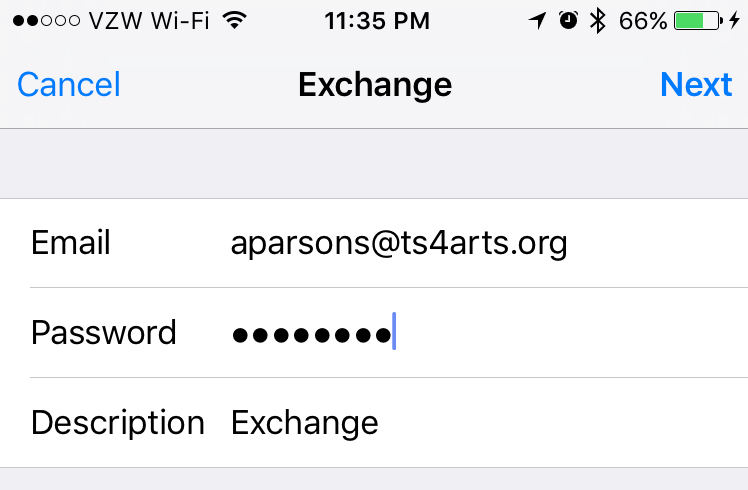
2) Enter your informationEnter your email address and password. If you want to, you can also enter an account description, such as "work email." |
 |
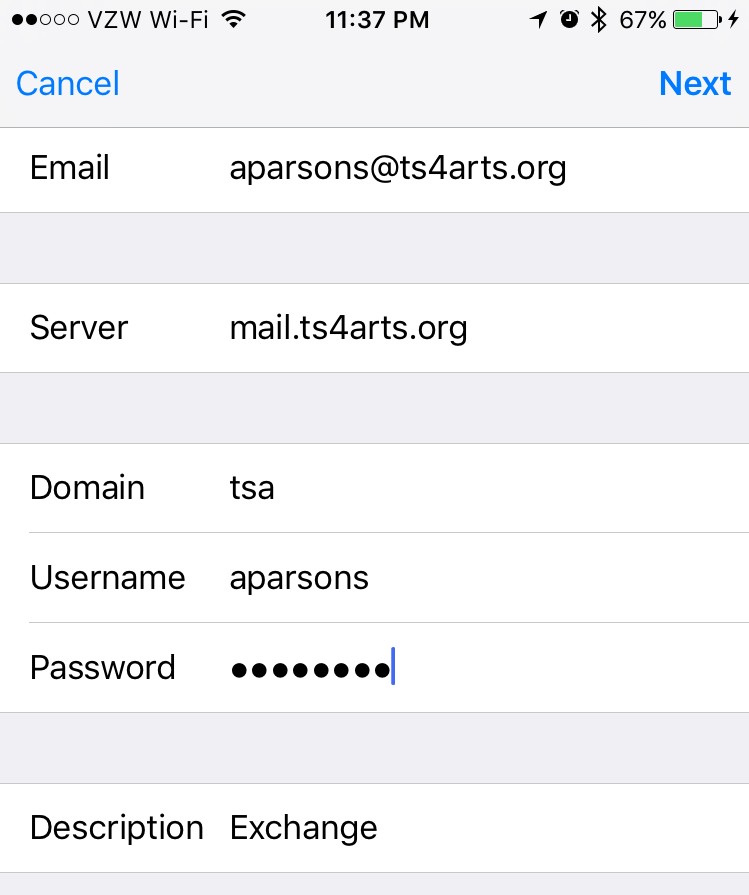
3) Connect to the Exchange ServerYour iOS device will try to find your Exchange Server. You might have to enter additional server information. If so, please use the following settings. Server: ts4arts.org Domain: tsa Username: Your username is the part of your email address before the @ts4arts.org part. For example, my email is rmeeker@ts4arts.org, and my username is rmeeker. |
 |
4) Sync your contentYou can sync Mail, Contacts, Calendars, Reminders, and Notes. When you're finished, tap Save. Please give it a few minutes to sync your mail. Syncing mail is not instantaneous, and will take a few minutes to download everything. |
 |
0 Comments