1) Log into your staff e-mail account in webmail by going to dwa.nwoca.org in your internet browser of choice.
2) Click "Options" in the top right corner of the screen, and then click "See All Options..." The screenshot below shows the location of these menu items.

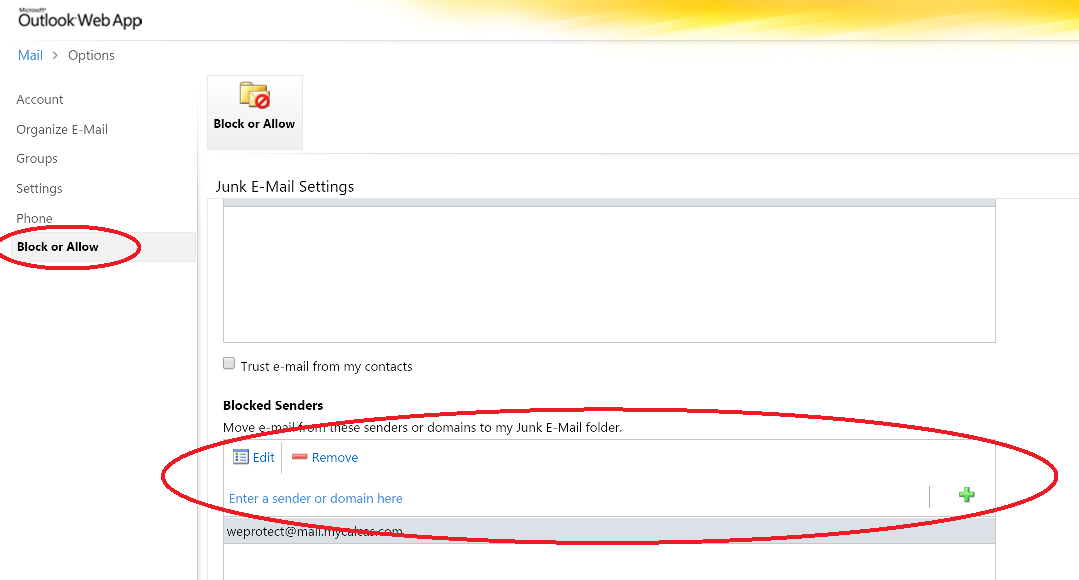
3) Click the "Block or Allow" tab on the left side of the options screen.
4) Scroll down to the "Blocked Senders" list. Input the email address or domain you wish to block, and click the green +. See the screenshot below for where to input this. If you wish to block a specific sender, please input their entire email address. If you are blocking an entire domain, do not include and at sign.
For example, blocking all emails from bob@smith.com should have you enter:
bob@smith.com
in the "Enter a sender or domain here" field. However, blocking everyone at smith.com would have you enter:
smith.com
in that same field.
0 Comments