In this article we show you how to automatically sort your emails into folders based on who sent it. Other options are available, but this is the most common use case.
1) Right click on your name in the left-side menu and select Create new folder

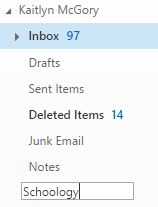
2) Type in a name for the folder and press enter/return to confirm the folder name. In our example the folder is called Schoology.
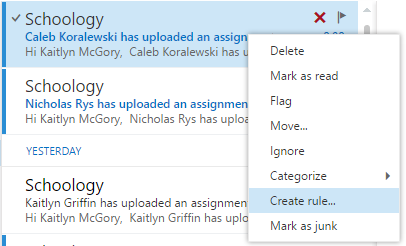
3) Right click a message that is an example of the message you want to auto-sort. In our sample we have selected an automated message from Schoology. In the right click menu, select Create rule...
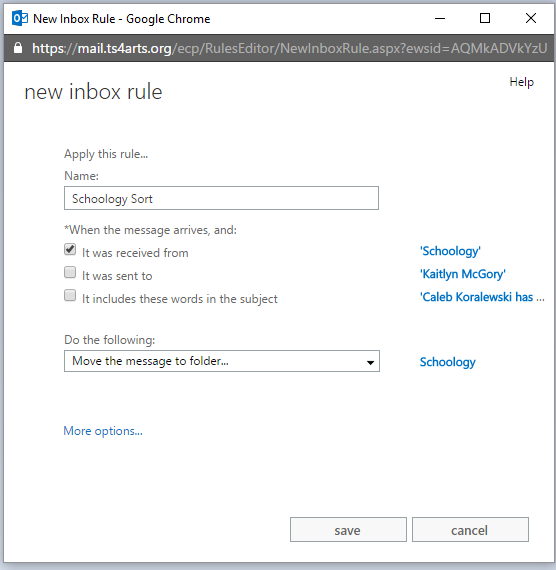
4) A new popup window will open. Input the settings you wish to use for email match criteria and the resulting action. Make sure to name it as well. In our example our rule is called "Schoology Sort", and looks at messages that arrive from "Schoology". It takes those messages and moves them to the folder "Schoology" in our email. When you are done hit save. Many other rules can be created, but sorting by sender or subject is the most commonly needed.
0 Comments